Showing posts with label Photoshop Tutorials. Show all posts

Best Websites that can make you a Web Designer

June 03, 2010 All in One Blog

HTML, Css, JavaScript are basic building blocks of a Web Page. A Web Designer needs to combine all these technologies to make a presentable website. This article is for those who wants to learn how to make a website, all the websites listed below have very accurate information and you can easily learn web designing step by step.

So sit back and enjoy most popular and step by step tutorial websites that can turn you into a web designer for sure.

W3Schools

W3Schools is the most popular among these, every article of there’s is almost accurate and they also provide simple examples to define the tutorial. HTML tutorials are very finely created and a definite  amount of demos are provided to understand the concept behind.


WebDevelopersNotes

WebDevelopersNotes.com offers free web programming tutorials and tips on HTML, JavaScript, Flash, SQL, web graphics, web hosting, web promotion, email programs (Outlook Express, Windows Mail, Windows Live Mail), web master resources, web development articles, internet basics and much more!


WebDesign

Web Design Library is committed to Provide in-depth analysis of the events most pertinent to the web design world, Giving its readers a behind-the-scenes look at the people, companies and events making headlines, Advancing the web design industry’s most comprehensive view at what’s hot, what’s not and what it all means.


Tizag

Tizag was designed to teach beginner web programmers how to use HTML and CSS. They have a very helpful community and it can make your problems to solve in a snap.


WebReference

Its a Network website of Internet.com and as they are known for some very high quality content and genuine stuff they provide. You can find many useful tutorials in a well displayed format.


Quackit

Quackit teaches beginners how to create websites. Teaching you the basics such as HTML and CSS. Advanced topics can help you add more features to your website.


EchoEcho

Easy to understand explanations, massive examples, tips, smart workarounds and useful quick references. EchoEcho is a great resource for JavaScript tutorials.


WebMonkey

Webmonkey is a free, public resource for web developers. Builders, designers and programmers like you — the people who know best — write the articles, tutorials, code snippets and other contributions.


AcademicTutorials

You will find over 100 programming language tutorials, lessons, and how-to’s. You can surf through the collection of free online tutorials or read postings in one of our forums. Just choose the language you are interested in learning in the left Side Bar.


Msdn Microsoft

This is the place to learn about technologies like HTML, Cascading Style Sheets, and JavaScript. You’ll also take a feature tour of Visual Web Developer 2008 Express Edition, and become acquainted with Visual Basic and Visual C#. Finally, depending on your knowledge level, you may want to follow the Bits & Bytes series to learn computer basics.


HtmLite

Html lite tutorials are easy to understand and are for the common web page creator. The UI is not that great but you can see the quality of content and tutorials.


HtmlPrimer

A well Designed and simple layout they provide very basic and information which is very high graded.


HtmlCodeTutorial

There goal is to provide the most helpful and complete guide to creating web pages anywhere. If you’re just beginning, start learning HTML here.


Jquery

jQuery is a fast and concise JavaScript Library that simplifies HTML document traversing, event handling, animating, and Ajax interactions for rapid web development. jQuery is designed to change the way that you write JavaScript.


FreeWebMasterHelp

You will find many high quality tutorials and articles dealing with some of the most popular and important issues and technologies surrounding web development. There are also tools to help you to develop your site, a huge image database, a directory of some of the best webmaster sites and ‘Ask The Webmaster’, a new feature which allows you to ask questions about web development.

I hope you must have liked the selection of websites i have made above. Do tell us your views and any website that has helped you learn the art of Web Designing.

http://savedelete.com/
»»  Read more

Super Cool CD Sticker : Photoshop Tutorials

March 18, 2010 All in One Blog

cover 18

1. Start by creating circular frame shape using custom shape tool.

pict 1


2. Using direct selection tool select inner nodes as shown and press Ctrl+T.

cover 2

3. Scale down the points to create a small hole. These outer and inner circle size should be in synch with actual CD dimensions.

cover 3

4. Fill it with gray color.

cover 4

5. Duplicate the layer. Again select the outer nodes and scale down a bit and select inner nodes and scale up a bit both using direct selection tool.

cover 5

6. Double click the layer to open layer style window. Apply settings as shown.

cover 6

cover 7

cover 8

7.  Create a big circle using elliptical shape tool. Press Ctrl+Alt+G to create a clipping mask.

cover 9

8. Similarly create two more circles with different colors and different placement. Press Ctrl+Alt+G to create a clipping mask for each layer.

cover 11

9. Create a sun shape using custom shape tool.

cover 12

10. Change the layer mode to luminosity.

cover 13

cover 14

11. Similarly create more shapes according to the topic of your CD ROM. We’re creating a CD ROM for Horoscope software so we are placing suns and planets etc. You can also insert images too. Create clipping mask for all shapes.

cover 15

12. Create a circle almost half the size of outer circle. Using type tool click on this path to type your text on it.

cover 16

13. Apply some outer glow layer style.

cover 17

14. Similarly create a path for the website url and place near the bottom.

cover 18

The following is my final work.


»»  Read more

How to Change Feed Icon colour

All in One Blog


This really is a simple Adobe Photoshop tutorial; change the colour of your feed icon to fit your wordpress theme colour.

1. Save the above icon into your computer and open it with Adobe Photoshop.

2. Right-click on the icon layer in layer palettes and select blending option from the menu.

3. Tick and select on Colour Overlay. Change blend mode to color (from normal)

4. Set the colour of your wish and you are done with the feed icon colour!.

5. Resize it to fit in your blog; Image > Image Size.. or [Alt]+[Ctrl]+I

»»  Read more

Free Download Adobe Photoshop CS4 Extended

All in One Blog

Adobe Photoshop CS4 Extended highlights:
- Easily access full editing power – Take greater advantage of all that Adobe Photoshop Extended software offers with a more intuitive user interface and nondestructive editing freedom so you can achieve the highest quality results.
- Work more efficiently – Be more productive thanks to smooth integration with other Adobe software and enhancements that leverage the power of today’s faster graphics processors.
- Edit 3D and motion-based content – Enjoy breakthrough enhancements that now let you paint directly on 3D objects and unleash theediting power of Photoshop software on 3D content.
- Perform advanced image analysis – Extract quantitative information from images, count objects or image features, track and log your work, and volume render DICOM files.


Download Link

http://rapidshare.com/files/357647465/PSCS4.part01.rar
http://rapidshare.com/files/357649461/PSCS4.part02.rar
http://rapidshare.com/files/357647536/PSCS4.part03.rar
http://rapidshare.com/files/357647497/PSCS4.part04.rar
http://rapidshare.com/files/357650104/PSCS4.part05.rar
http://rapidshare.com/files/357648245/PSCS4.part06.rar
http://rapidshare.com/files/357648205/PSCS4.part07.rar
http://rapidshare.com/files/357650326/PSCS4.part08.rar
http://rapidshare.com/files/357648110/PSCS4.part09.rar
http://rapidshare.com/files/357648214/PSCS4.part10.rar
http://rapidshare.com/files/357783631/PSCS4.part11.rar
http://rapidshare.com/files/357786004/PSCS4.part12.rar
http://rapidshare.com/files/357783615/PSCS4.part13.rar
»»  Read more

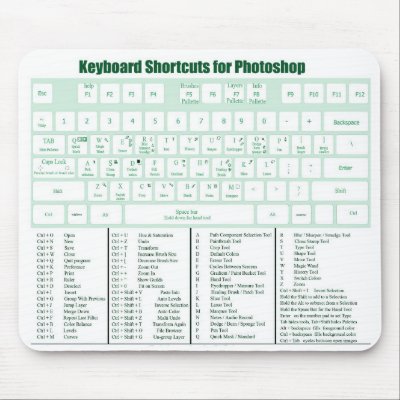
Download Adobe Photoshop Keyboard Shortcut List

March 07, 2010 All in One Blog

Keyboard Shortcuts are keystrokes used to quickly invoke a command. As well, shortcuts usually (but not always) involve a modifier key such as Ctrl/Cmd, Alt/Opt, or Shift. For example, instead of choosing Select » Deselect from the menus, you could simply press Ctrl/Cmd+D.


Download Adobe Photoshop Keyboard shortcut List :

  1. Adobe Photoshop CS4 ( Download for: PC (45 KB)
  2. Adobe Photoshop CS3 ( Download for: PC (43 KB)
  3. Adobe Photoshop CS2( Download for: PC (51 KB)
  4. Adobe Photoshop CS ( Download for: PC (49 KB)
  5. Adobe Photoshop 7 ( Download for: PC (32 KB))
  6. Adobe Photoshop 6 ( Download for: PC (31 KB))
  7. Adobe Photoshop 5 ( Download for: PC (74 KB))
Sourcer : morris-photographics
»»  Read more

How To Adding Cool Unusual Text Effect

February 19, 2010 All in One Blog

Hello All visitors How are you . to day i'm post a Photoshop Tutorial . Name is Photoshop Tutorials How to adding Cool Unusual Text Effect .

Demo

Cool Unusual Text Effect 27

Read the text below.

Start by creating a new document to make this text effect. I created a small document sized 500×300 pixels and fill it with color of #74a103:

Cool Unusual Text Effect 01

After that cerate a new one layer, then select the Elliptical Marquee Tool and make the selection, then fill this selected area with color of #b6e100.

Cool Unusual Text Effect 02

Remove the selection with Ctrl+D and apply Filter > Blur > Gaussian Blur with similar settings to these:

Cool Unusual Text Effect 03

Your result should look like mine:

Cool Unusual Text Effect 04

Now it’s time to add your text to the canvas! Start by getting out the Horizontal Type Tool then write out your text.

Cool Unusual Text Effect 05

The font I’ve used above is called Futura. Ok, start to create the text effect. Rasterize this text layer with Layer > Rasterize > Type. Press Ctrl+J to copy the layer and hide the original layer (click on the eye, which indicates layer visibility). Go to the upper layer and apply Gradient Overlay layer style to this layer.

Cool Unusual Text Effect 06

See the difference now:

Cool Unusual Text Effect 07

Start to transform current layer with Edit > Transform > Skew to get the text as on my picture below:

Cool Unusual Text Effect 08

Now, we need to do is add the glare on the letters. Create a new layer and make selection using the Rectangular Marquee Tool as on picture below and fill it with white color.

Cool Unusual Text Effect 09

Remove the selection with Ctrl+D and apply Filter > Blur > Gaussian Blur with following parameters:

Cool Unusual Text Effect 10

The result you can see on the picture below.

Cool Unusual Text Effect 11

After that create a new one layer, make selection using the Rectangular Marquee Tool and fill it with white color again.

Cool Unusual Text Effect 12

Remove selection and apply Filter > Blur > Gaussian Blur with other parameters:

Cool Unusual Text Effect 13

Your image should look as mine.

Cool Unusual Text Effect 14

Merge two of these layers in one and rotate it a little bit with Edit > Transform > Rotate:

Cool Unusual Text Effect 15

Duplicate this glare three of times and bring to each letter.

Cool Unusual Text Effect 16

Merge all glares in one layer. Ok, press Ctrl and Left click the text layer Thumbnail in the Layers Palette to make letters selection, then press Ctrl+Shift+I to invert selection and use Delete to clear selected area.

Cool Unusual Text Effect 17

Remove the selection with Ctrl+D. Go back to the hidden text layer and make it visible again. After that apply Edit > Transform > Skew to skew this layer.

Cool Unusual Text Effect 18

Don’t apply transformation unless don’t reduce the height of the letters with Edit > Transform > Scale.

Cool Unusual Text Effect 19

Ok, apply Color Overlay layer style to this layer.

Cool Unusual Text Effect 20

Now, we have different color for the letters.

Cool Unusual Text Effect 21

After that create a new one layer, then select the Polygonal Lasso Tool and begin to connect the upper part of the letter with its projection. After that fill selected area with color of #689106.

Cool Unusual Text Effect 22

Finish other letters in the same way.

Cool Unusual Text Effect 23

Ok, merge current layer with layer under. Now, we can start create volumetric letters. Get out the Polygonal Lasso Tool and create selection as on my picture below. Then apply the Dodge Tool (Brush: 45 px, Range: Midtones, Exposure: 30%).

Cool Unusual Text Effect 24

After that press Ctrl+Shift+I to invert the selection and apply the Dodge Tool with similar settings as before.

Cool Unusual Text Effect 25

Ok, now select the Burn Tool (Brush: 45 px, Range: Midtones, Exposure: 30%) and add a little bit more dark spots on the letter side. Then remove the selection with Ctrl+D.

Cool Unusual Text Effect 26

Process other letters in the same way.

Cool Unusual Text Effect 27

And that’s pretty much it. Thanks for reading, I hope you enjoyed the tutorial.

Cool Unusual Text Effect 27

»»  Read more

Digital Blog ( ডিজিটাল ব্লগ )

Digital Blog on Facebook
Button BEGIN --> Bookmark and Share